
scEmacs Overview & Introdution
scEmacs reads text files into memory Buffers where they can be displayed and edited. It can have many such buffers at a given time and they can be displayed and manipulated independently. Buffers are displayed in Panes on windows called Frames (to avoid confusion with OS terms). There can be many frames (windows) at the same time, each showing one or more panes, and each pane will display the contents of its single buffer. However, multiple panes can display the very same buffer, as illustrated by the two below:
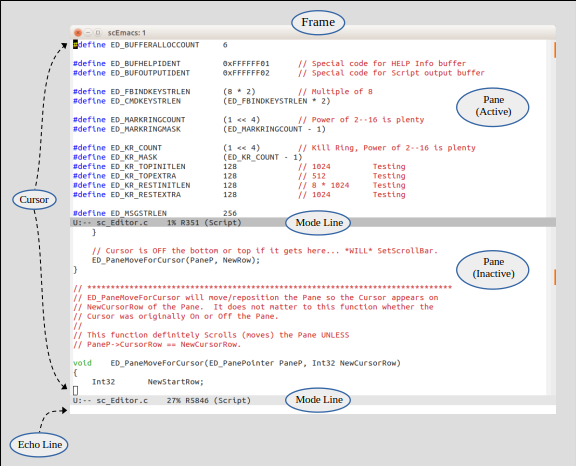
At any given time, there can be only a single active pane and it will reside in the frontmost frame window. Every pane always shows its cursor, as it is impossible to move it off the visible area. But only the one active pane has a solid (blinking) cursor, all other panes (on all other frames) show an empty cursor outline instead. Every pane also has a Mode line that names its buffer, shows the display mode (Script in this case), as well as other information. Only the active pane (top pane above) gets a highlighted (dark gray) mode line. Each frame window also has an Echo line on the bottom to display feedback and enter commands.
The whole purpose of scEmacs is to allow fast and efficient manipulation of text directly
from the keyboard, without having to use the mouse. Control and Meta
(alt on modern keyboards) key combos (used like shift keys) are employed to
issue commands. For example, Control-f (C-f) is a command to move
the cursor forward one character. Similarly, Meta-f (M-f) will
move it forward one word.
These keyboard commands are really bindings for internal functions that can also be
invoked by name. While some internal functions are not bound to any key combinations, all
must have a name! So M-f is bound to forward-word and can also be
called by typing M-x forward-word (always lowercase).
Actually M-x itself just calls exec-named-cmd which places the
cursor in the bottom echo line for entry of command names. This echo line also provides
auto-completion. Simply hit Tab after typing a few letters and scEmacs
tries to automatically resolve the function name (or as much of it as it can).
There are many function names that start with f so M-x f followed
by Tab yields no progress while M-x fo followed
by Tab will complete to M-x forward-. Subsequently
typing w followed by another Tab will yield M-x
forward-word!
scEmacs Specifications
- Supports UTF-8 characters in left-to-right format. Double-wide and compounded glyphs
are not supported. A single LineFeed (
LFor\n) character marks the end-of-line and files using CR or CR+LF conventions are filtered when read. - Uses signed 32-bit indices, therefore limits file/buffer lengths to 2 gigabytes,
subject to memory availability. This limitation pertains to
bytecount, not glyph count as UTF-8 characters can be up to 4 bytes long. - Supports Text and Script modes, the latter is hand-tailored for scScript, but works for general display/edit of source code. Script mode provides color hilites and smart tabs to help formatting.
- Can display in color, but this information cannot be saved as
.txtdoes not support meta-data. Source code displayed in Script mode is colorized on the fly. scEmacs has a simple syntax colorizer, but it is easy to extend and alter. - Provides multiple levels of
Undobut does notAuto-save. - Provides incremental search and query replace operations.
- Lacks a mini-buffer facility, but allows for limited editing commands (delete, yank, etc.) on the echo line as well as auto-completion and query response interactions.
- Supports a Kill Ring and Mark List. Also supports mouse-based selection,
scrolling, and even Unix style
XSelcopy/paste (middle button/wheel). - Provides a complex pop-up window/menu facility for enumeration and selection of commands, buffers, marks, and kill ring text fragments.
- Provides specialized commands to drive scScript operation as well as i/o interaction.
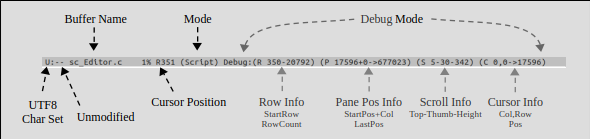
- In Debug mode (compiled with
-DDEBUGinMakefile), will display additional realtime information in the mode line and provide more debugging and test functions.
Starting Up
When launched, scEmacs brings up a single frame window with a single pane, displaying
*Temp-1* buffer. This buffer can be immediately deleted, but then scEmacs will
create *Temp-2* as it requires at least one buffer for operation.
- To create a new file, simply type to enter text, then use
C-x C-wtowrite-file. scEmacs will provide the current directory information on the bottom echo line and prompt for the file name. At this point edit the directory specifications (usingTabfor auto-completion while traversing the directory tree) and enter the desired file name.

- To edit an existing file, use
C-x C-fforfind-file. scEmacs will prompt in a similar way, but this time to read an existing file into the buffer where it can be viewed and edited. - To save the file after some edits, use
C-x C-stosave-file. - Finally, use
C-x C-ctoquit-and-exitwhen done. scEmacs will warn and ask for exit confirmation if there are any modified buffers. One can also exit by closing all open frame windows, but this will simply exit scEmacs without checking buffers.